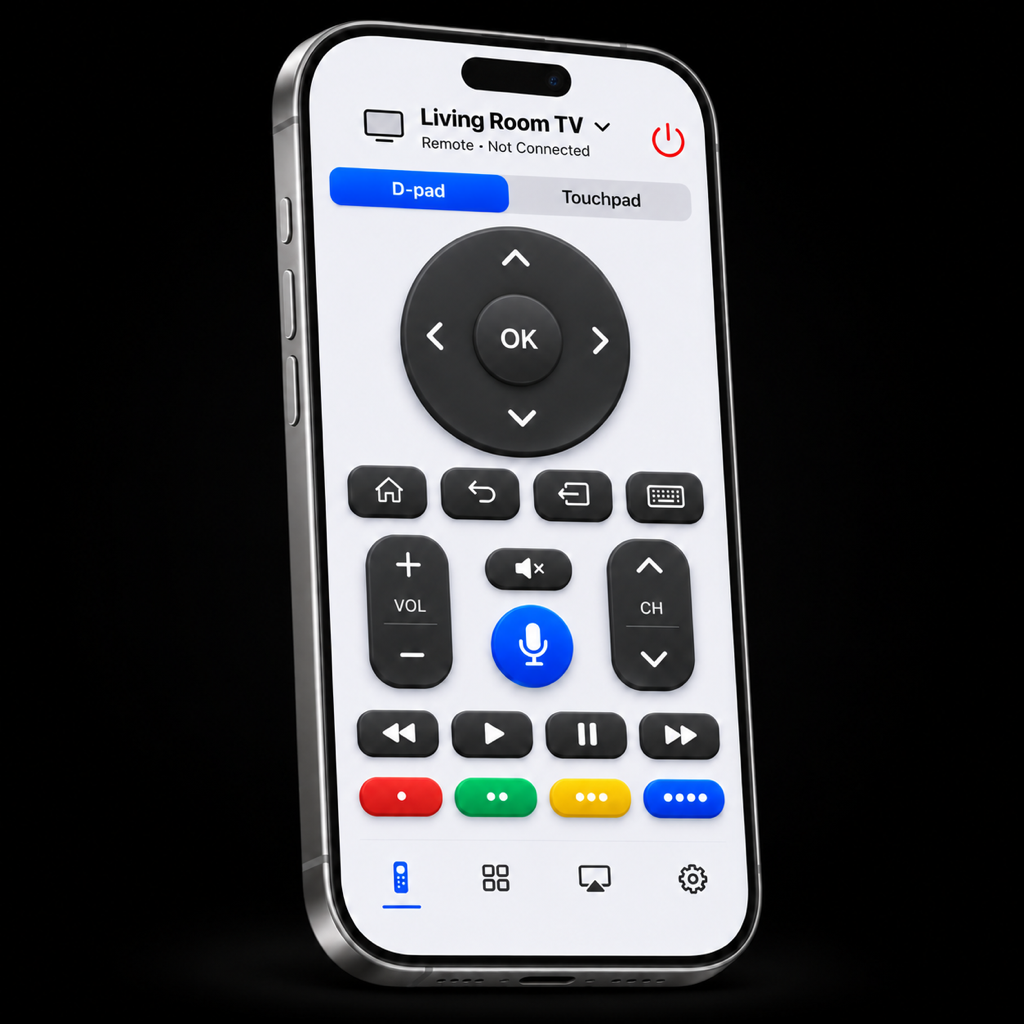
An independent remote for LG webOS.
Your TV.
Within reach.
Find your TV, pair securely, and get back to watching. Help for Smart Remote for LG on iPhone and iPad.
Email supportConnect in three steps.
Your phone and TV, on your home network.
Find your TV
Turn on your LG webOS TV. In Smart Remote, choose Connect your TV and allow Local Network access.
Pair securely
Select your TV in Nearby TVs. Review its certificate in Smart Remote and approve the connection request on the TV.
Start with the basics
Wait for Connected. Try navigation and a small volume change before exploring keyboard, apps or casting.
A few helpful answers.
TV models, firmware and individual apps can behave differently. Start with the feature you are using.
How Smart Remote handles your dataMy TV does not appear.
Turn on the TV and use the same trusted home network on your iPhone or iPad. The TV can use Wi-Fi or Ethernet, as long as both devices can reach each other. Guest networks, VPN routing and router isolation can block discovery.
Allow Local Network access when iOS asks. If you denied it, enable Smart Remote in iPhone Settings → Privacy & Security → Local Network, then return to Smart Remote and search again. Automatic discovery needs a discovery-enabled build; Connect by IP address is available as a fallback.
Pairing does not complete.
Keep Smart Remote open and the TV turned on. Select your TV, review its certificate on your trusted network, then choose Allow on the TV’s Smart Remote for LG request. Pairing can take up to three minutes.
If an old request has expired, dismiss it and retry. If the TV has revoked Smart Remote’s authorization, use Forget TV in Smart Remote and pair again. A changed certificate needs your review before you trust it.
Keyboard text is not reaching the TV.
Use the TV remote to select a compatible text or search field first. The phone keyboard can open automatically when the TV reports an active LG system text field. For an app’s own letter grid, open Keyboard in Smart Remote yourself.
Enter a short test and tap Send. With YouTube active, Send opens YouTube search results for that text. Other compatible fields receive ordinary text input; use Enter on TV separately when needed. This does not provide universal search or full text synchronization across TV apps.
Some streaming apps and protected fields reject third-party keyboard input. If text is still missing, try an ordinary field in the TV browser and note which app or field fails. Include any error message in your support email; do not send passwords or other sensitive text.
What appears in the Apps tab?
Smart Remote asks the selected TV for its installed apps and inputs. App names and available artwork come from that TV. Missing or unreadable artwork uses a fallback icon. Refresh the Apps tab if your installed apps have changed.
App availability and launch behavior depend on your TV’s firmware and the apps installed on it.
A photo or video will not play.
Choose a single non-sensitive photo or video with Apple’s picker, and keep Smart Remote in the foreground while it loads. Local sharing uses a temporary HTTP address on your home network. Stop sharing, disconnecting or backgrounding Smart Remote stops its media server.
Photos are converted to JPEG with a maximum 3,840-pixel long edge. Video needs a codec supported by your TV; a compatible H.264 MP4 is a useful test. DRM content, signed-in web streams and some video formats cannot be cast. A transfer message alone does not confirm playback on the TV.
AirPlay asks for a password.
AirPlay is managed by your TV and Apple’s system controls. Check the TV’s AirPlay settings for its code or password options and confirm that you selected the intended receiver. Smart Remote cannot read or reset an AirPlay password.
System AirPlay and Screen Mirroring require a compatible TV and their own setup. They are separate from Smart Remote’s local photo and video sharing.
How do voice commands and dictation work?
Open the microphone control, choose Commands or Dictation, then tap Start listening. Both modes currently require Apple’s on-device English speech recognition. You review the result before choosing Send command or Send text to TV.
Smart Remote has no cloud-recognition fallback. Dictation remains literal text and does not submit a search. You can stop listening at any time; closing the voice screen or backgrounding Smart Remote also stops capture.
Can Smart Remote turn on my TV or use Bluetooth?
Wake-on-LAN requires a saved TV network MAC address, compatible standby behavior and the TV’s mobile wake setting. Network conditions and TV firmware affect whether it works. Sending a wake packet does not confirm the TV has turned on.
Smart Remote’s supported remote connection uses your local network. Direct Bluetooth remote control is not a supported feature. Older LG NetCast TVs are not supported.
How do I remove my saved TV?
Open the TV chooser and use Forget TV for that device. This removes its saved app metadata, pairing credential and approved certificate from Smart Remote. Your TV may also retain an authorization entry that you can remove in its settings.
Removing the iOS app can leave Keychain entries behind. Forget saved TVs first if you want Smart Remote to remove those credentials. There is no Smart Remote online account to delete.
Still need a hand?
Email support@flipiq.us with your TV model, firmware, iPhone or iPad model, iOS version, Smart Remote version and what happened. Redact private details. Never send pairing keys, passwords or temporary media links.